Connect public or private Mintlify documentation and choose the pages used by each repository.
Connect Mintlify to give understanding checks relevant architecture, product, and operating guidance from your published documentation. Set up one shared team connection, then choose the exact pages each repository can use.
You need to be the Second Flow team owner to change the connection or its repository pages. For private documentation, you also need permission to generate a Docs MCP credential in the Mintlify project.Have your site’s canonical HTTPS URL ready. Open the site in your browser and use its final address, including any base path. Enter the site URL, such as https://docs.example.com/ or https://example.com/docs/, rather than an MCP endpoint or an individual page.
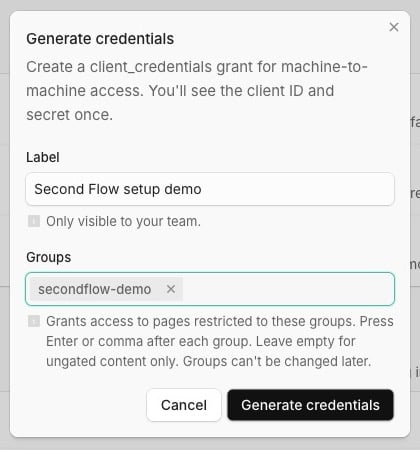
Open your Mintlify project and go to Settings → General. Find Docs MCP and select Generate.Give the credential a label, such as Second Flow. Add only the Groups whose pages are approved for your repository audience, pressing Enter after each group. Select Generate credentials and copy the client ID and client secret to a secure place. Mintlify shows the secret once.
Generate a site-specific Docs MCP credential. This example uses a separate private demo project.
The Docs MCP section appears only when the site uses authentication. Credentials without groups can read public pages and authenticated pages without group restrictions. See Mintlify’s client credential instructions for its permission rules.
Use a Docs MCP credential from this project. Mintlify’s MCP → Credentials section manages Admin MCP access, and API keys manages REST API access. Those credentials do not belong in this connection.
2
Connect the site in Second Flow
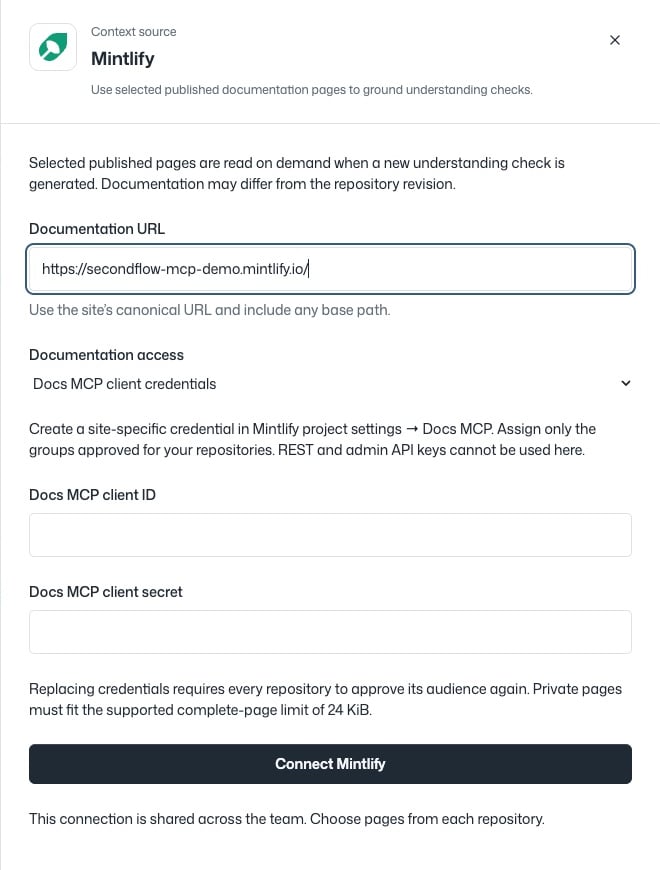
In the Second Flow console, open Context Gateway and select Configure source on the Mintlify card.Enter the canonical Documentation URL. Under Documentation access, select Docs MCP client credentials. Enter the Docs MCP client ID and Docs MCP client secret, then select Connect Mintlify.
Connect the documentation site using its Docs MCP client ID and secret. Credential fields are empty in this screenshot.
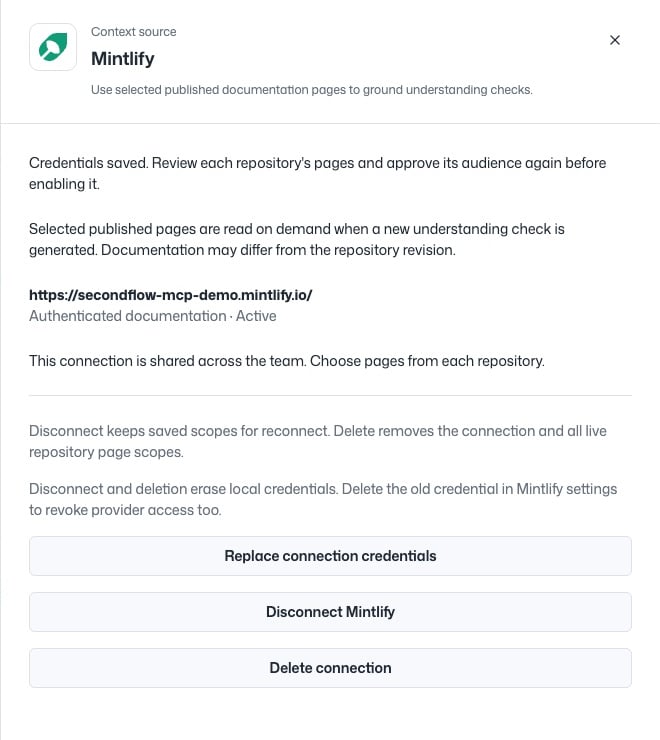
After connecting, verify that the site shows Authenticated documentation · Active. Choose pages for each repository before using them in understanding checks.
Verify the connection
The private documentation connection is active. Credentials are no longer displayed.
3
Choose pages for a repository
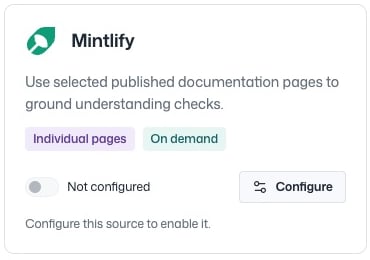
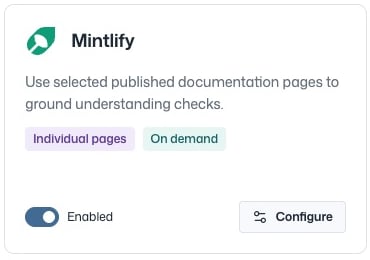
Open Repositories, choose the repository, and open its Context Gateway tab. Select Configure on the Mintlify card.
Open the Mintlify configuration from the repository’s Context Gateway tab.
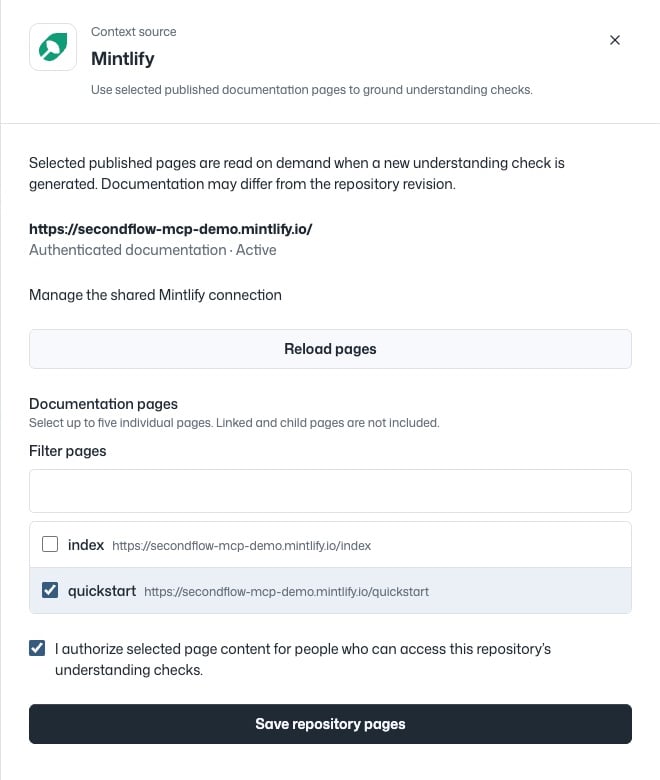
Select Load pages. Use Filter pages to find the guidance you need, then select one to five individual pages. Linked pages and child pages are not included automatically.Confirm I authorize selected page content for people who can access this repository’s understanding checks., then select Save repository pages. Review this audience carefully when selecting protected documentation.
Select exact pages and approve the repository audience before saving. This example selects the demo project's protected quickstart page.
After saving, return to the repository’s Context Gateway card and verify that Mintlify shows Enabled. If its switch is off, enable it. Reopen Configure to confirm that your selected pages and audience approval are preserved.
An enabled repository uses its saved Mintlify pages for future understanding checks.
Open Context Gateway → Mintlify, enter the canonical Documentation URL, leave Documentation access set to Public documentation, and select Connect Mintlify.Then use the same repository setup above to load pages, choose one to five pages, approve the audience, and save. Public connections use Mintlify’s published documentation index and Markdown pages.
Second Flow reads the selected published pages on demand when generating a new understanding check. Published documentation may differ from the repository revision. Changing the documentation or page selection does not rewrite existing questions or completed results.Choose small, maintained pages. Private pages must fit the complete-page limit of 24 KiB. Public pages allow up to 128 KiB each, with a combined retrieval limit of 256 KiB. Other context limits can also affect retrieval.
To rotate credentials, generate a replacement in Mintlify. In the shared Second Flow connection, select Replace connection credentials and save the new client ID and secret. Review and save every repository’s pages and approve its audience again. Re-enable any repository scope that was disabled.Disconnecting the shared connection stops future reads and keeps saved repository page selections for reconnect. Deleting it removes the live connection and repository page selections. To revoke the credential at Mintlify, delete it in that project’s Docs MCP section after updating integrations that use it.
Docs MCP is missing in Mintlify: Check that you opened the correct project and that it already uses authentication. Public sites can use Public documentation in Second Flow.
Access is rejected: Check the canonical site URL, credential type, and group access. Reconnect with a valid Docs MCP credential.
A page is missing: Confirm that it is published and available to the credential. Use Reload pages after a documentation update.
A private page exceeds the limit: Split it into smaller pages, publish them, and update the repository selection.
Mintlify stays disabled for a repository: Save its page selection and audience approval, then enable its switch. After replacing credentials, repeat the audience approval for each repository.
⌘I
Assistant
Responses are generated using AI and may contain mistakes.